


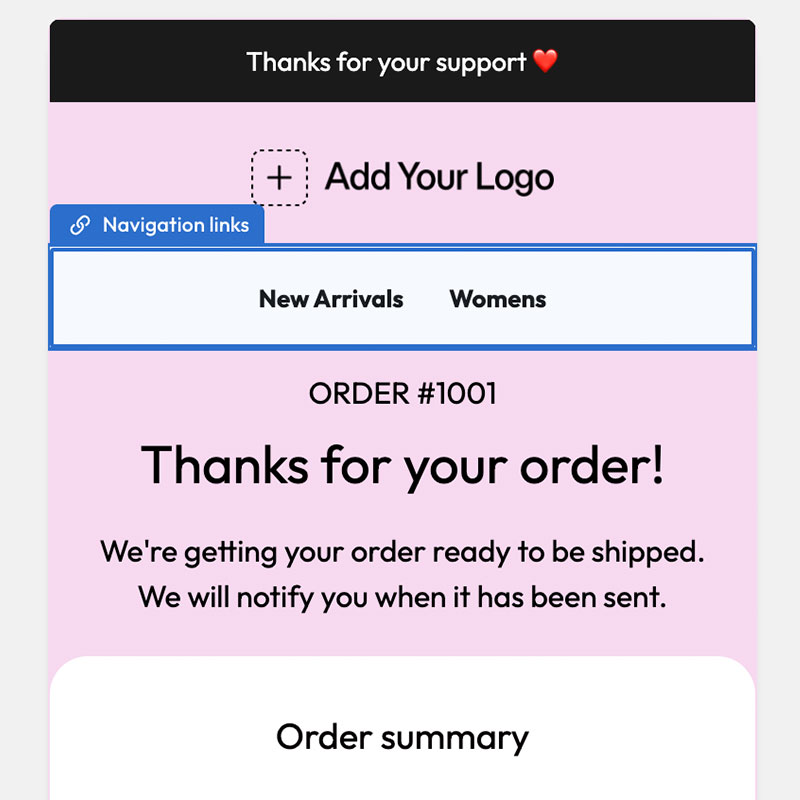
If you are searching for how to edit order confirmation emails on Shopify, you are in the right place. Shopify lets you Customise the Order confirmation notification directly in admin—no third-party ESP required for the basic edit.
Step 1: Open the Order confirmation notification
- In Shopify Admin, go to Settings.
- Click Notifications.
- Under Customer notifications, open Order confirmation.
Here you can edit the email subject and the body template.
Step 2: Edit the subject line
Keep it clear and scannable. Include the store name and order reference when it helps, for example: Order confirmed — {{ order_name }}. Avoid clickbait; this is a transactional message.
Step 3: Edit the email body (Liquid + HTML)
Shopify’s template uses Liquid tags for order data (line items, totals, shipping, etc.). You can change copy, rearrange sections, and add HTML—but small syntax mistakes can break the template or hide order details.
Before you publish:
- Use Shopify’s preview where available
- Place a test order on a development or low-risk product
- Check desktop and mobile rendering
Step 4: Save and test
Save your changes, then confirm a real or test order still shows products, totals, and customer details correctly. If something looks wrong, revert to the previous template until you can fix it safely.
A safer alternative if you do not want to edit Liquid
Many merchants want branded order confirmations without maintaining HTML/Liquid by hand. With Easy Emails you can:
- Install the app from the Shopify App Store
- Design your email in a visual editor (templates + sections)
- Preview with sample order data
- Export Shopify-ready code on Unlimited
- Paste it into Settings → Notifications → Order confirmation
Your email still sends through Shopify Notifications—you are only replacing the design.